3 Tool Setup
This chapter provides a step-by-step recipe for installing and configuring all tools required for building course materials with Quarto, managing content with GitHub, and integrating outputs into Blackboard Ultra.
While GitHub is strongly recommended for version control and long-term course management, users who prefer to work entirely on local machines or cloud-synced drives (Google Drive, OneDrive, Dropbox, iCloud Drive) may skip the repository creation steps and proceed directly to Chapter 3.
However, the GitHub-based workflow—especially when paired with Antigravity or VS Code—is highly preferred for reproducibility, collaboration, and maintaining a clean version history of your teaching materials.
This recipe assumes no prior experience. Each step includes instructions and verification checks.
3.1 Install Git
Git is the version control system used throughout the recommended workflow. You can choose the platform from the installation on the Git website.
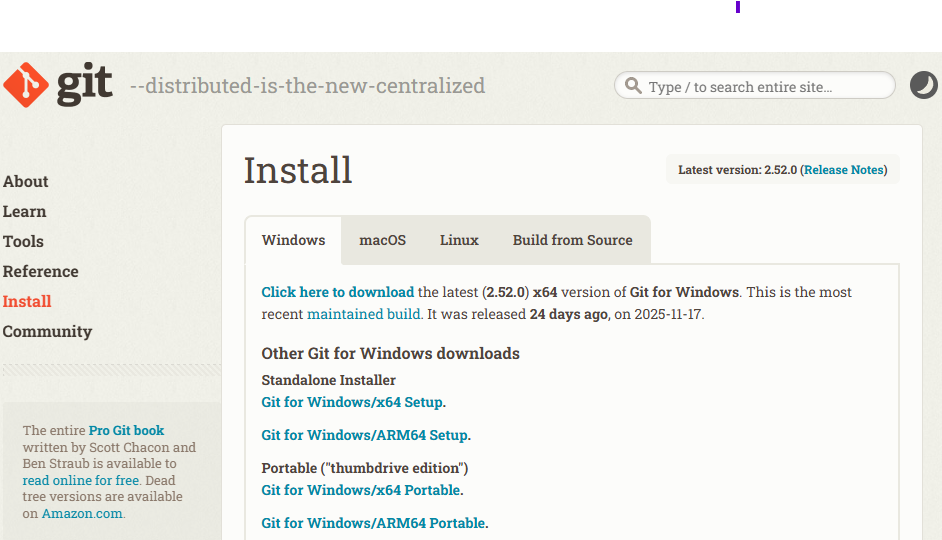
Install Git using your operating system:
- macOS:
brew install git- Windows: Download
- Linux:
sudo apt update && sudo apt install git -yVerify installation:
git --version
3.2 Install GitHub CLI
GitHub CLI (gh) enables authentication and repository operations directly from the terminal. Download and install from: GitHub CLI
3.3 Create a GitHub Account
A GitHub account stores repositories, manages version history, and integrates directly with Antigravity or VS Code.
- Visit GitHub
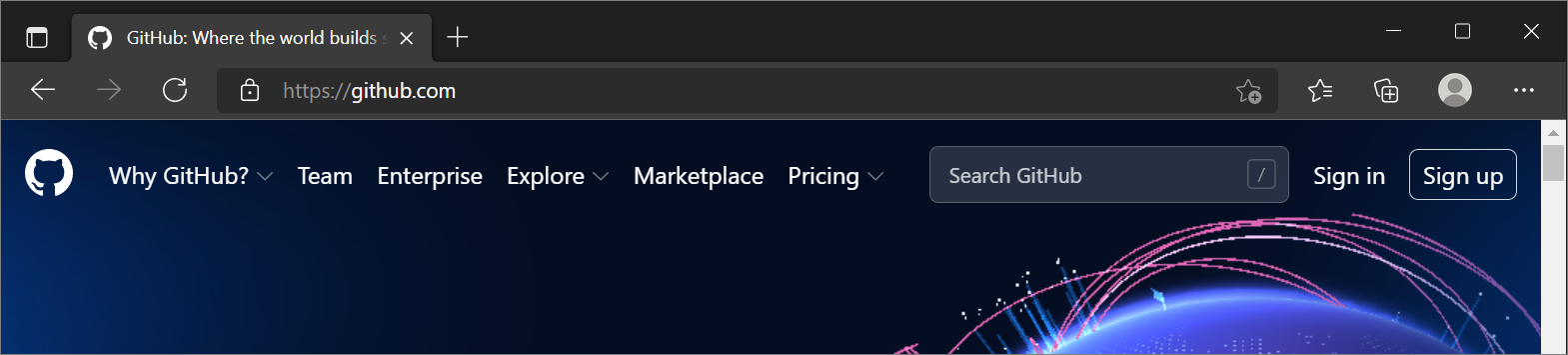
- Create an account
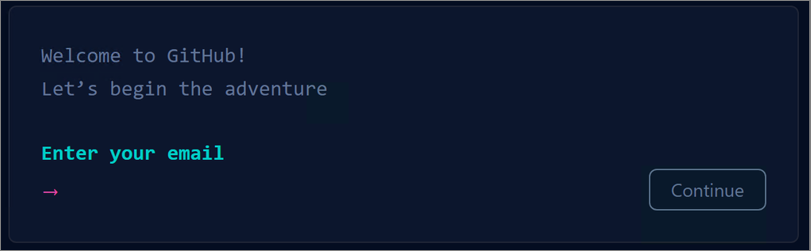
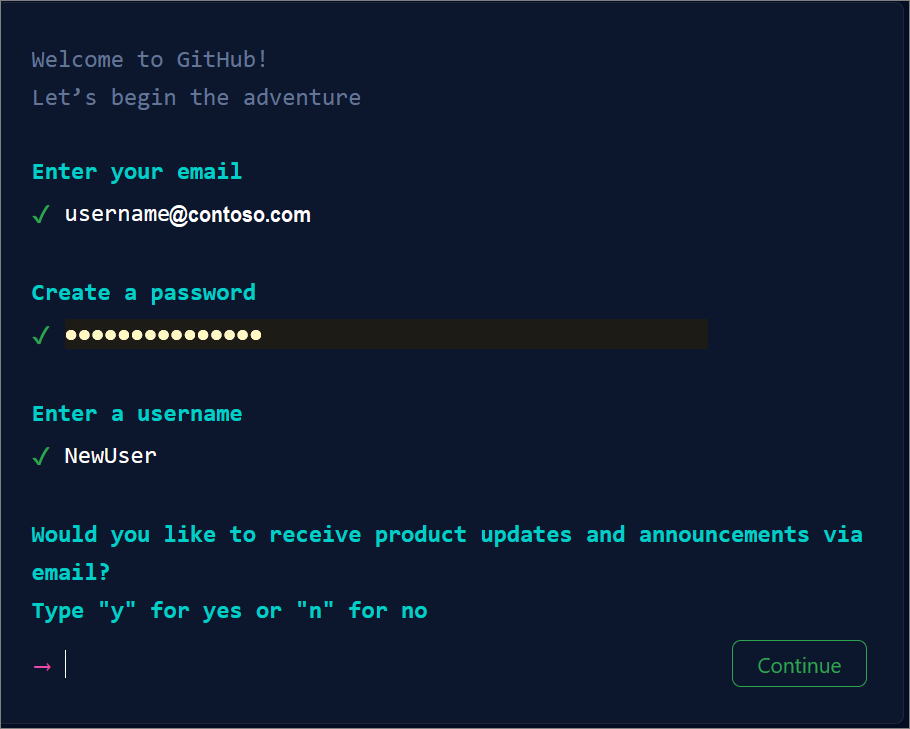
- Choose a professional username
3.4 Create Your GitHub Pages Repository
(Optional for users who plan to work only on local/cloud drives)
This step creates your personal website: https://yourusername.github.io
If you prefer to work without GitHub, skip to Chapter 3. However, the GitHub-based workflow is strongly recommended.
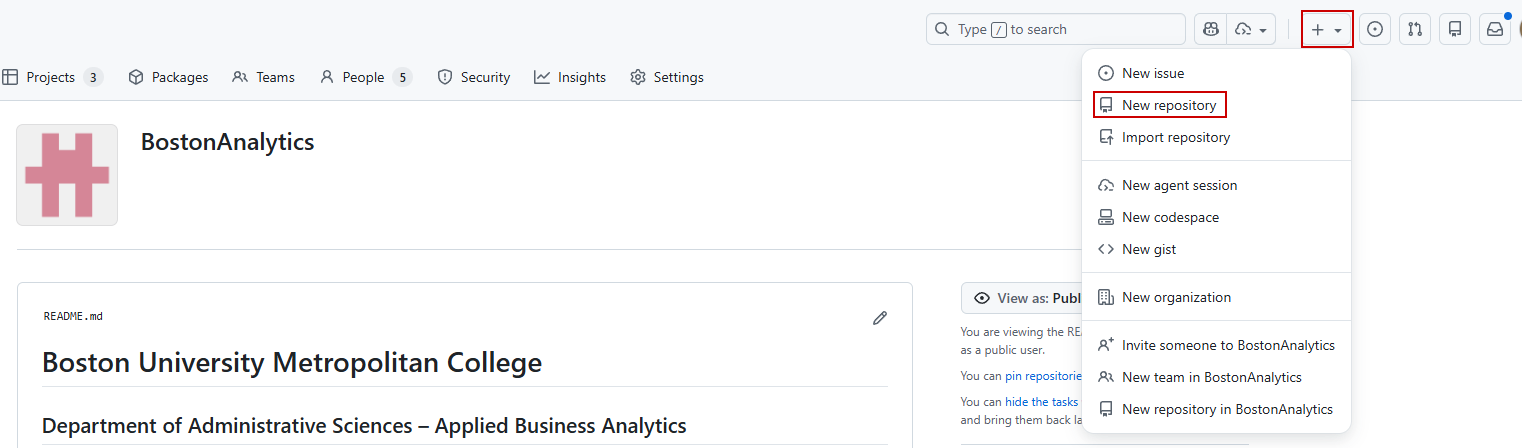
- Go to https://github.com/new, or click on the + icon in the top-right corner of your GitHub dashboard shown in Figure 3.5.
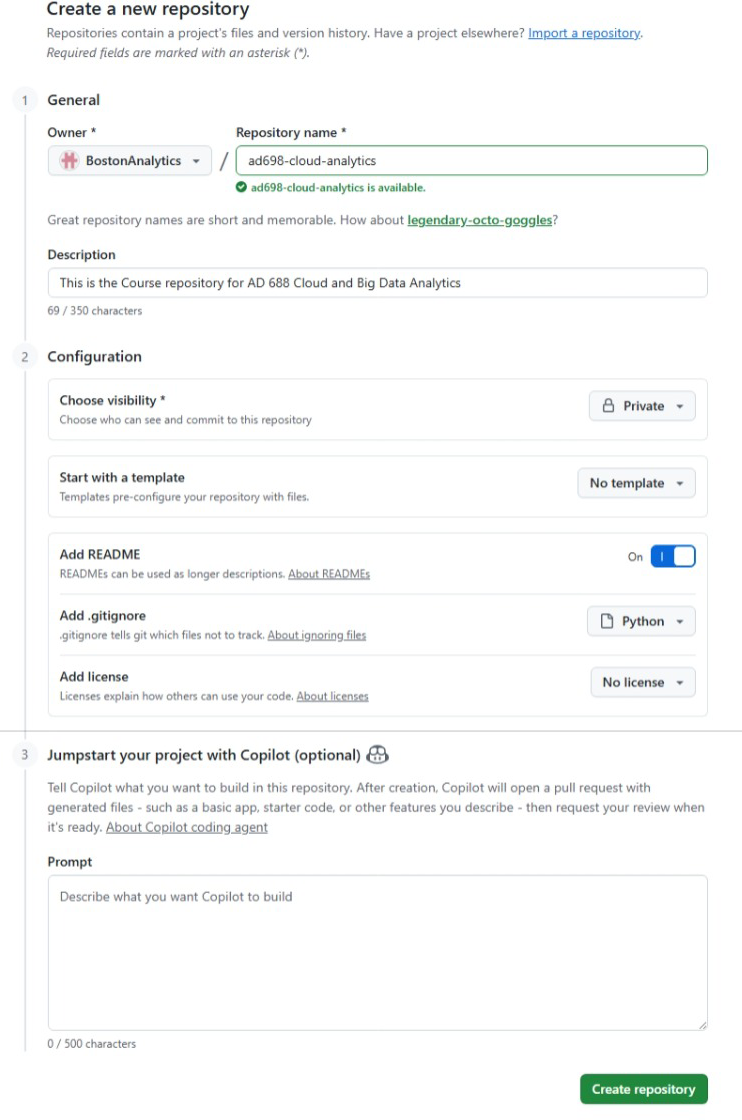
- Set repository name:
yourusername.github.iocreates your personal website repository- For a course repository, use
coursenumber-coursename(e.g.AD688-big-data-and-cloud-computing)
yourusername.github.io - Select Private, since we want this to be available for instructors only.
- Add README and
.gitignore, you can choose the template to bepythonorrto avoid syncing the virtual environments to the git repo. - Create repository
3.4.1 Configure Git Identity and SSH Keys
(Required only if using GitHub workflow)
3.4.2 Configure identity
git config --global user.name "Your Name"
git config --global user.email "you@example.com"
3.4.3 Generate an SSH key
ssh-keygen -t ed255193.5 Add the public key to GitHub
cat ~/.ssh/id_ed25519.pubAdd it to https://github.com/settings/keys
3.6 Test authentication
ssh -T git@github.com
4 Clone Your GitHub Pages Repository
(Skip this step if not using GitHub)
4.1 Instructions
Clone repository:
git clone git@github.com:yourusername/yourusername.github.io.git
cd yourusername.github.io
Create a sample file:
echo "Welcome to my GitHub Pages site." >> index.mdStage and commit:
git add .
git commit -m "Initial commit"
Push:
git push origin mainPull:
git pull5 Install Quarto
Quarto is the publishing framework used in this book.
5.1 Instructions
Download from: https://quarto.org/docs/download/
Verify:
quarto --version6 Install Pandoc
Pandoc is required for document format conversion.
6.1 Instructions
macOS:
brew install pandocLinux:
sudo apt install pandoc -y
Windows installer already includes Pandoc.
7 Install Graphviz
Graphviz supports diagrams and visual structures.
7.1 Instructions
macOS:
brew install graphvizLinux:
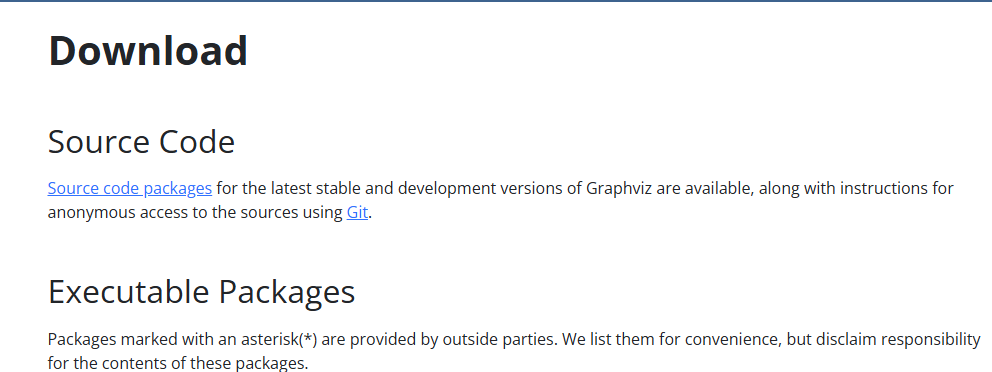
sudo apt install graphviz -yWindows: Download https://graphviz.org/download/
8 Install Python 3.12 or higher
8.1 Instructions
Download from: https://www.python.org/downloads/
Select “Add Python to PATH” during installation.
8.2 Verification
python3 --versionComplete Guide for Python Installation is here
9 Install R and RTools
9.1 Instructions
Install R: https://cran.r-project.org/
Windows users install RTools: https://cran.r-project.org/bin/windows/Rtools/
10 Install VS Code, Antigravity, or Cursor
You can use any of the following editors for this workflow:
- VS Code for the broadest extension ecosystem
- Antigravity for a VS Code-style environment with built-in agent workflows
- Cursor for editor-native AI coding assistance
All three work well for Quarto, Python, GitHub, and notebook-based teaching materials.
Antigravity is a strong option for this workflow because it integrates:
- GitHub
- Jupyter
- Python
- Quarto
- Remote development
- AI agents
- Extension ecosystem
In case you are using local/cloud drive, you can also use any other IDE that you are comfortable with.
10.1 Instructions
Download: https://antigravity.google/
Sign in with Google or GitHub.
11 Connect AI Coding Tools
Once your editor is installed, connect the AI tools you plan to use for course development:
- GitHub Copilot for inline completions, chat, and code explanations inside the editor
- ChatGPT-connected coding tools in VS Code or Antigravity when you want help drafting scripts, debugging, or restructuring Quarto content
- Cursor if you prefer an AI-first editing environment for project-wide code generation and refactoring
- Gemini APIs when you want to automate metadata generation, text transformation, or structured content workflows from scripts
For classroom use, these tools are most helpful for boilerplate generation, formatting, debugging, and rapid prototyping. Final instructional content should still be reviewed by the instructor before release.
12 Install Required Editor Extensions
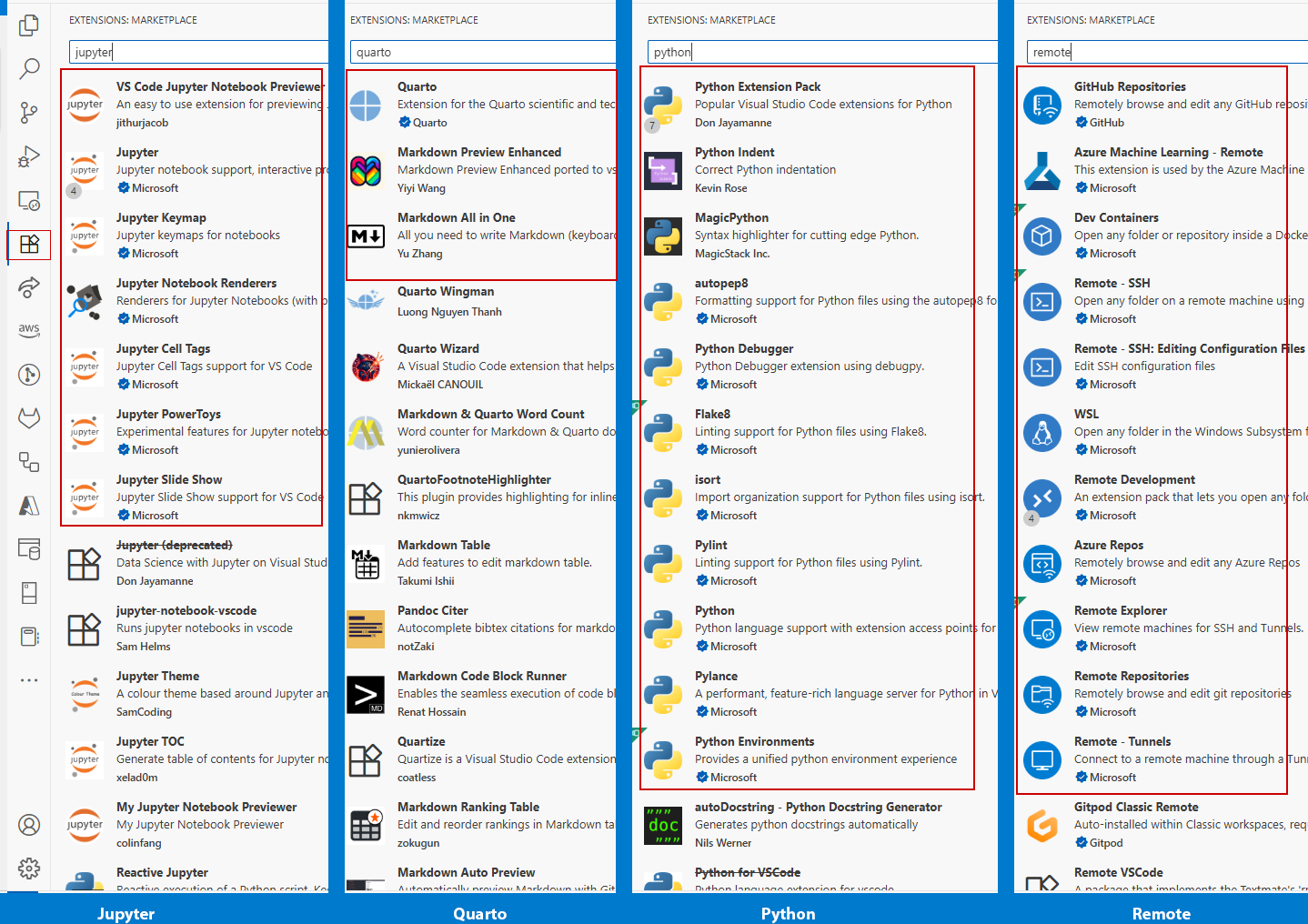
The following extension groups should be installed for the Quarto workflow:
13 Create Python and R Environments (Optional)
13.1 Python virtual environment
python3 -m venv .venvActivate:
macOS/Linux:
source .venv/bin/activateWindows:
.venv\Scripts\activateInstall packages:
pip install numpy pandas jupyter matplotlib quarto13.2 R environment using renv
#| eval: false
#| echo: true
install.packages("renv")
renv::init()
install.packages(c("tidyverse", "knitr", "rmarkdown"))
renv::snapshot()
14 Verification Checklist
Check that each core tool is installed:
Lets check for the installed tools on command lines:
git --version
python3 --version
pip --version
jupyter --version
java -version
scala -version
spark-shell --version
poetry --version
quarto check
15 Next Steps
If you chose not to create a GitHub repository, proceed directly to Chapter 3, where you will learn the authoring fundamentals of Markdown, LaTeX, and Quarto.
If you completed the GitHub setup, you now have a fully configured development environment ready for:
- Authoring (Chapter 3)
- Building Quarto websites (Chapter 4)
- Connecting content to Blackboard Ultra (Chapters 5–6)